


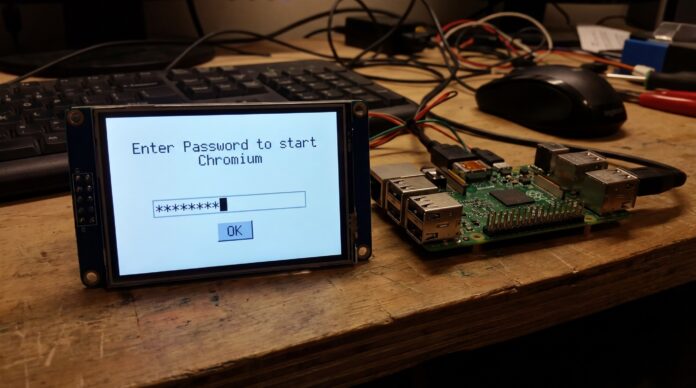

If you are using a Raspberry Pi (running Raspberry Pi OS) and have it set to log in automatically, you have likely encountered a frustrating pop-up every time you open Chromium. If you want to disable Chromium keyring password on Raspberry Pi, this guide will show you exactly how.
This is not a bug, and it’s not Chromium asking for your Google account password. It is the operating system’s security vault asking for permission to let Chromium access saved passwords.
Here is why it happens and how to stop it permanently using two different methods.
Why Does Chromium Keyring Password Popup Appear on Raspberry Pi?
- The Keyring: Linux systems (including Raspberry Pi OS) use a tool called a “keyring” (Gnome Keyring) to store passwords securely. By default, this vault is encrypted.
- The Auto-Login Conflict: When you set your Raspberry Pi to log in automatically (without typing a user password), the system never unlocks the keyring.
- The Result: When Chromium starts up and tries to access the keyring to see if you have saved passwords for a website, the OS intercepts the request. Since the vault is locked, it demands you type in your user password to unlock it.
You cannot simply “turn this off” in Chromium’s settings because it is a security feature of the operating system. However, you have two options to bypass it.
Method 1: Disable Chromium Keyring Password Using Flags
This method tells Chromium to stop asking the operating system’s vault for passwords. Instead, it stores passwords in a simple, unencrypted local file. Note: This method is fine for a home Raspberry Pi that only you have physical access to, but it is less secure than using the keyring.
Step-by-Step Instructions
- 1 – Open the Terminal on your Raspberry Pi. You can find it in the top bar or under the “Accessories” menu.
- 2- You will create a configuration file. Type the following command and press Enter:
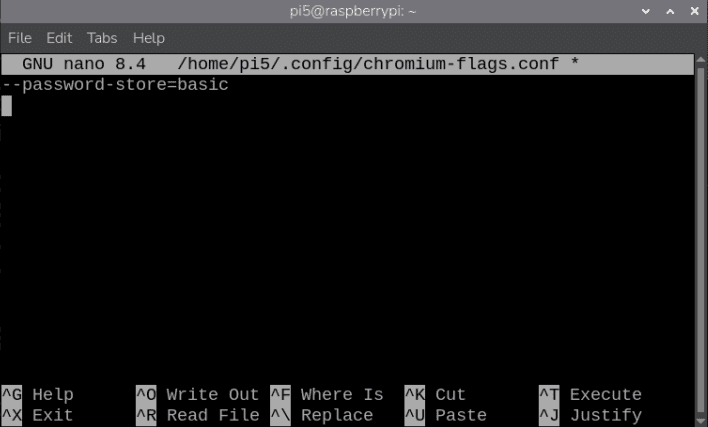
nano ~/.config/chromium-flags.conf

- If the file doesn’t exist, this command creates it. If it does exist, it opens it for editing.
- 3 – In the text editor (nano), add the following single line:
--password-store=basic
- 4 – Save the file:
- Press Ctrl + O (the letter O, not zero) to save.
- Press Enter to confirm the filename.
- Press Ctrl + X to exit the editor.
- 5 – Restart Chromium. Close all Chromium windows completely and reopen it.
The password prompt should now be gone. Chromium will now manage your passwords internally without asking the operating system to unlock the keyring.
The password prompt should now be gone. Chromium will now manage your passwords internally without asking the operating system to unlock the keyring.
Method 2: Remove Gnome Keyring Password on Raspberry Pi OS
If you prefer to keep the security structure intact but simply don’t want to type a password because you have auto-login enabled, you can set the keyring password to blank. This is often considered the most permanent fix because it resolves the prompt for all applications that use the keyring, not just Chromium.
Warning: This makes your stored passwords (for Wi-Fi, SSH, etc.) visible to anyone who can physically access the Pi. Only do this if your Pi is in a safe environment.
Step-by-Step Instructions
- 1 – Open the Terminal.
- 2- Install the “Passwords and Keys” application (if it isn’t already installed on your version of the OS):
sudo apt updatesudo apt install seahorse -y- 3 – Launch the application. You can type:
seahorse- in the terminal, or find “Passwords and Keys” in the main menu (usually under System Tools or Accessories).
- 4 – In the left-hand sidebar, look for “Login” under the “Passwords” section.
- 5 – Right-click on “Login” and select “Change Password”.
- 6 – A window will pop up asking for your Old Password. Type in your current user password (the one you usually use to log in or that the pop-up asked for).
- 7 – Crucially: Leave the New Password field blank. Leave the Confirm field blank.
- 8 – Click Continue.
- 9 – A warning will appear stating that stored passwords will become insecure. Click Use Unsafe Storage (or “Continue”) to confirm.
Now, when Chromium (or any other application) asks the keyring for passwords, it will unlock automatically because there is no password set on the vault.
Summary
| Method | Pros | Cons |
|---|---|---|
| Method 1: Flags | Quick, easy, only affects Chromium. | Less secure for Chromium passwords. |
| Method 2: Keyring | Fixes the issue for all apps (Wi-Fi, SSH, etc.). | Makes the entire system’s password vault unencrypted. |
For most Raspberry Pi users running a home media center, retro console, or simple desktop, Method 1 is usually the best option to quickly eliminate the pop-up without altering system-wide security settings.
Raspberry Pi OS official documentation